
A friend of mine lost eleven years of photographs on an ordinary Tuesday. Not to a hacker, not to a fire — to a laptop that simply refused to wake up. She had been meaning to "sort out backups" for about a decade. The drive was recoverable, a specialist told her, for somewhere north of $1,200, and even then only maybe.
What made the story worse is that she thought she was covered. Her phone synced to a cloud account. Her important documents lived in a shared drive. It felt like enough right up until the moment it wasn't, because sync is not backup, and the distinction only becomes obvious after you need it.
If you've been putting this off too, here's the good news: a genuinely solid backup setup takes about an afternoon to build and roughly $10 a month to run. The framework professionals use has a name, it's forty years old, and it fits in a single line.
The rule that fits on a napkin
The 3-2-1 rule says: keep three copies of your data, on two different kinds of storage, with one copy stored somewhere else entirely.
The logic is not about paranoia. It's about making sure that no single event can reach all your copies at once. Your working file on your laptop is copy one. An external drive on your desk is copy two — different hardware, so a laptop failure doesn't touch it. A cloud account or a drive at your parents' house is copy three, and it's the one that survives the burst pipe, the burglary, or the house fire that takes out both machines sitting on the same desk.
Three copies isn't excessive. It's the smallest number where losing two of them is still survivable.
Notice how each number targets a specific enemy. Two copies protects against hardware failure. Two different media protects against a systematic flaw — a bad batch of drives, a controller bug, a firmware issue that bricks every identical device you own. The off-site copy protects against anything that has a physical address.
The reason this survived four decades of technology change is that it never mentioned technology. Tape gave way to optical discs, which gave way to spinning disks, then SSDs, then object storage in someone else's data centre. The arithmetic didn't care.
Why sync services quietly fail you
Here is the trap almost everyone falls into. A sync service — the kind that mirrors a folder across your devices — is designed to make every copy identical as fast as possible. That is exactly the wrong behaviour when something goes wrong.
Delete a folder by accident, and sync faithfully propagates that deletion everywhere within seconds. Let a corrupted file save over a good one, and sync distributes the corruption. Get hit by ransomware that encrypts your documents folder, and sync helpfully uploads the encrypted versions over your clean ones. The service did its job perfectly. You still lost everything.
Backup software behaves differently on purpose. It keeps versions. It doesn't overwrite history; it adds to it. When you restore, you don't just get "the current state of the folder" — you get to say give me this folder as it looked last Thursday morning, which is the only question that matters after a bad Thursday afternoon.
Most sync services do offer some version history, usually 30 days on paid tiers. That's a useful safety net and worth knowing how to use. But it's a feature bolted onto a tool with the opposite design goal, and the retention window is short enough that a problem you don't notice for six weeks is a problem you can't undo.
| Sync service | Backup software | |
|---|---|---|
| Main goal | All copies match, instantly | Preserve history over time |
| A deletion | Propagates everywhere | Stays recoverable |
| Version depth | Typically ~30 days | Months to years, configurable |
| Ransomware | Spreads the damage | Roll back to a clean point |
Use both. They solve different problems. Just don't let one convince you the other is handled.
The 2026 addition: one copy nothing can touch
The rule has grown a tail in recent years, and it's usually written 3-2-1-1-0: the extra 1 is one copy that is immutable or air-gapped, and the 0 is zero errors in your last verified restore test.
That addition exists because of a specific, ugly change in how attacks work. Modern ransomware doesn't go for your documents first. It goes hunting for your backups, because encrypted backups are what turn an inconvenience into a payment. Security vendor Sophos reported that in incidents they studied, 94% of victims said attackers attempted to compromise backups, and 57% of those attempts succeeded.
An immutable backup is one that cannot be altered or deleted for a set retention period — not by malware, not by a stolen admin password, not by you. Cloud object storage sells this as "object lock" or "immutable storage," and increasingly it's a checkbox rather than a project. An air-gapped copy achieves the same thing crudely and effectively: a drive that spends most of its life unplugged, in a drawer, physically incapable of being encrypted by anything.
For a household, the drawer drive is perfectly legitimate immutability. Rotate two drives, keep one disconnected at all times, swap them monthly. Malware cannot reach a device with no electricity running through it.
The part everybody skips
The 0 is the one that stings, because it's the difference between having backups and having recoverable data. These are not the same thing, and the gap between them is where most disaster stories actually live.
Backups fail silently in mundane ways. A scheduled job stops running after an OS update and nobody notices for eight months. The backup covers Documents but not the application folder where your accounting software actually stores its database. The archive is encrypted with a passphrase saved only in the password manager that was on the dead laptop. Every one of these looks like a working backup right up until the restore.
So test it. Not a full disaster drill — just pick a real file, one you'd genuinely miss, and restore it from a version at least a month old to a different location. Open it. Confirm it's the file you expected, not an empty shell or a corrupted archive.
# A five-minute quarterly ritual: verify, don't assume.
# 1. Restore something old to a scratch folder
restic -r /mnt/backup restore latest --target /tmp/restore-test --include "/home/me/taxes"

# 2. Confirm it isn't zero bytes and actually opens
ls -lh /tmp/restore-test/home/me/taxes
Put a recurring reminder in your calendar for the first Saturday of every quarter. Twenty minutes, four times a year. That's the entire maintenance burden.
What this looks like for a normal person
Let's make it concrete, because "three copies, two media, one off-site" is easy to nod at and hard to act on.
Copy 1 is your laptop or desktop — your live working data. Nothing to set up.
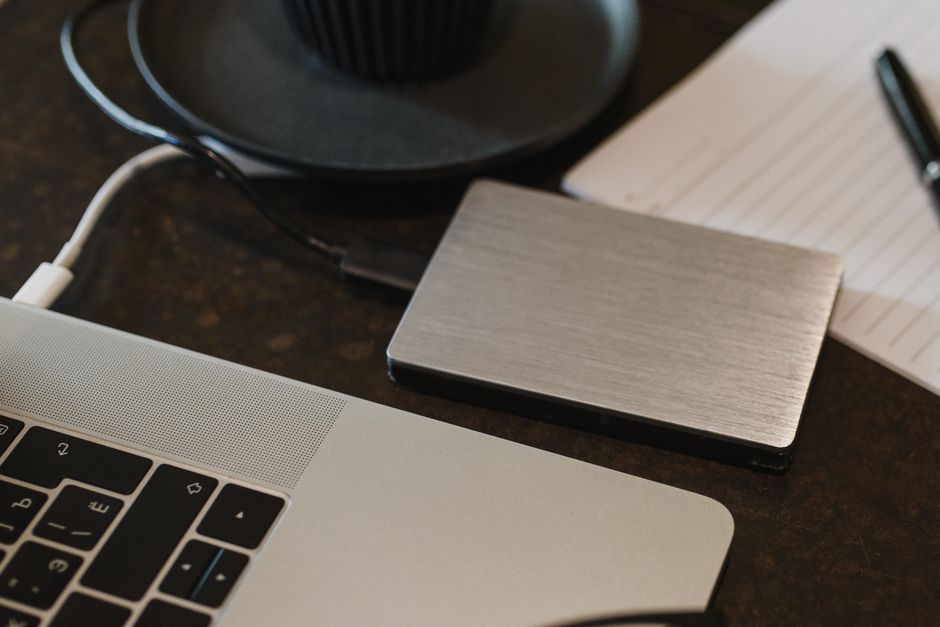
Copy 2 is an external drive. A 4TB portable drive runs roughly $90–$130 as of writing, and both major desktop operating systems ship with automatic backup software built in and free: Time Machine on macOS, File History or the built-in image tool on Windows. Plug it in, turn it on, let it run hourly. Budget for roughly twice the storage of the data you're protecting so version history has room to breathe.
Copy 3 is off-site, and this is where most people stall. Two workable paths: an unlimited-style consumer backup service, which typically runs about $9–$12 per month per computer and is the least-effort option by a wide margin; or a backup tool of your choice pointed at cloud object storage, where you pay per gigabyte — often in the range of $5–$6 per TB per month — and get object lock for immutability. The first is simpler. The second is cheaper at small volumes and gives you more control.
The immutable copy can be a second external drive that lives unplugged in a drawer, or the object-lock setting on that cloud bucket. Either counts.
Prices and product tiers shift constantly, so treat those figures as a rough sense of scale as of writing rather than a quote. The structure is what's stable; the vendors are not.
Decide what's actually irreplaceable
One last reframe that makes all of this much lighter. Not everything deserves three copies.
Sort your data into two piles. The first is irreplaceable: photos, videos, personal writing, financial records, scanned documents, code you wrote, anything with sentimental weight. This is usually far smaller than people expect — often well under 500GB even after twenty years of accumulation. It gets the full treatment.
The second pile is replaceable: your operating system, installed applications, downloaded media, game libraries, anything you could re-download in an afternoon. Backing it up is convenient because it saves reinstall time, but losing it costs hours, not memories. Skip it if that's what keeps the plan cheap enough to actually happen.
The question isn't "how much data do I have?" It's "what could I never get back?"
Once you've drawn that line, the whole project shrinks. You're not building a data centre. You're protecting a few hundred gigabytes of things that exist nowhere else in the world.
The short version
Three copies, two kinds of storage, one off-site, one that can't be altered, and zero surprises when you test a restore. Sync services are wonderful and are not backups. The external drive is the easy half; the off-site copy is the half that actually saves you. And a backup you've never restored from is a hypothesis, not a plan.
My friend eventually got about 70% of her photos back, at real expense, after three weeks of not knowing. She now runs an external drive and a cloud service, and she checks it every few months. It took her one afternoon.
Yours will too — and unlike almost everything else on your to-do list, this is the rare task you do once and then quietly benefit from for years.



Comments 0