
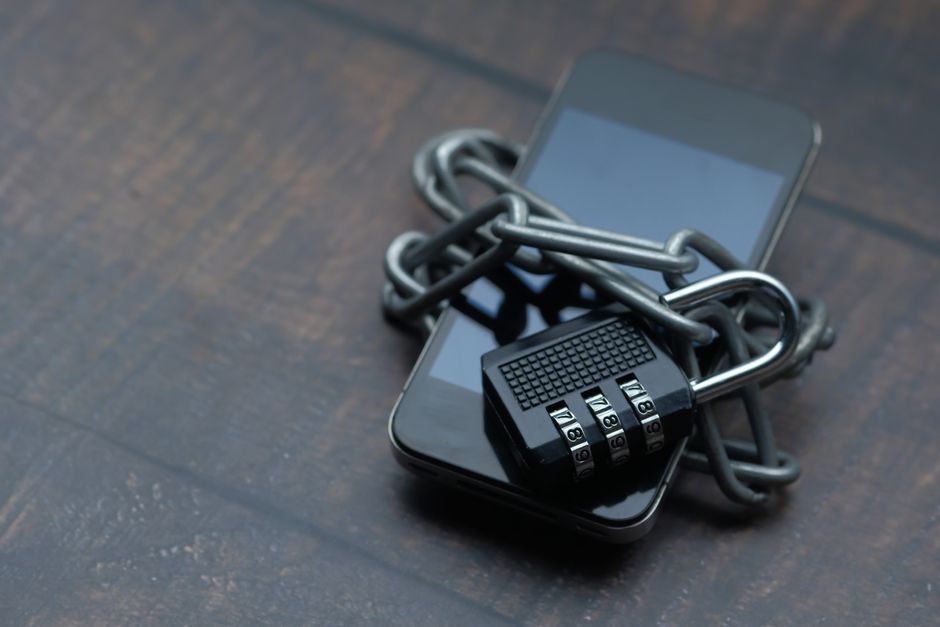
You set up two-factor authentication years ago, texted yourself a code, and felt safer. For a while, you were. But the login screen you trusted has quietly changed underneath you. The six-digit code arriving by text message — the one that once felt like a vault door — is now the weakest lock most people still rely on.
This isn't a reason to panic, and it's definitely not a reason to turn off 2FA. Any second factor beats a password alone. But there's a real, practical upgrade sitting one setting away in almost every account you own, and most people never flip it. Here's what's actually happening behind that login prompt, and how to move from "protected" to "hard to touch" without becoming a security hobbyist.
Why the text-message code stopped being enough
When you receive a login code by SMS, that code travels across the phone network before it reaches you. That sounds harmless until you realize how many hands the network passes it through — and how little it takes to redirect the whole thing.
The headline threat is SIM swapping. An attacker calls your mobile carrier, impersonates you with a few personal details scraped from a data breach or your social media, and convinces a support rep to move your phone number to a SIM card they control. From that moment, every code meant for you lands on their device instead. No malware, no password-cracking — just a persuasive phone call. Security researchers consistently find that SMS-based 2FA blocks the overwhelming majority of bulk, automated phishing attempts, but offers little protection once someone is specifically targeting you.
SMS 2FA is a fence that keeps out the wandering crowd but folds the moment someone decides you're worth the effort.
The second problem is quieter: phishing pages that relay your code in real time. You land on a fake login screen, type your password and the texted code, and a script on the other end immediately feeds both into the real site before the code expires. The text message did exactly what it was designed to do — it just delivered the key to the wrong door. Both of these attacks share a root cause: the code is a shared secret that can be read, forwarded, or intercepted in transit.
How authenticator apps quietly fix half the problem
An authenticator app — Google Authenticator, Microsoft Authenticator, Authy, 1Password, and many others — solves the transit problem in an elegant way. Instead of a code being sent to you, the code is generated on your phone.
Here's the mechanism, called TOTP (Time-based One-Time Password). When you first scan that QR code during setup, your phone and the server agree on a shared secret — a long random string — and store it locally. After that, nothing about the codes ever travels the network again. Both sides independently run the same math: take the secret, mix in the current time rounded to a 30-second window, and produce six digits. Because both your phone and the server know the secret and both know the time, they land on the same number without ever exchanging it.
code = truncate( HMAC-SHA1( shared_secret, current_time / 30 ) )That single design choice erases the SIM-swap threat entirely. There's no phone number to hijack, no text to intercept, no carrier support rep to fool. Even in airplane mode, with no signal at all, your authenticator app keeps producing valid codes — proof that nothing is being transmitted. The 30-second refresh you see is just the "current time" ticking to the next window.
Authenticator apps aren't perfect. They still hand you a code that you type into a screen, which means a convincing real-time phishing page can still trick you into relaying it. But you've removed the largest and easiest attack, and you've done it in about ninety seconds per account.
The strongest option almost nobody has turned on yet
If authenticator apps close the transit hole, passkeys close the phishing hole too. A passkey replaces both the password and the second code with a cryptographic key pair. One key stays locked on your device (protected by your fingerprint, face, or PIN); the matching key lives on the server. Logging in means your device proves it holds the private key without ever revealing it.
The reason this matters is subtle but decisive: a passkey is bound to the real website's address. If you land on a look-alike phishing domain, your device simply refuses to respond — there's no code to type, so there's nothing to trick out of you. This is why security agencies now describe this style of authentication (the FIDO standard) as the strongest form of multi-factor protection available to ordinary people. The FIDO Alliance reports billions of passkeys already in active use, and every major platform — Apple, Google, Microsoft — now supports them natively.
The catch is coverage. As of 2026, passkeys are widely available but not universal; plenty of banks, utilities, and smaller services still haven't added support. So passkeys can't be your only strategy yet — they're the option you reach for first where it exists, with authenticator apps filling every remaining gap.
A simple hierarchy you can actually remember
You don't need to audit all hundred of your accounts this weekend. You need a default and a priority order. Here's the whole strategy in one table:
| Method | Stops bulk phishing | Stops SIM swap | Stops targeted phishing | Use it for |
|---|---|---|---|---|
| SMS code | Mostly | No | No | Last resort only |
| Authenticator app | Yes | Yes | Partly | Your everyday default |
| Passkey / security key | Yes | Yes | Yes | Your most valuable accounts |
Read from the bottom up. Where passkeys are offered, use them — especially for the accounts that unlock everything else: your primary email, your password manager, your cloud storage, your main financial logins. Email deserves special mention, because whoever controls your inbox can reset the password on nearly every other account through "forgot password" links. Protect it like the master key it is.
Everywhere passkeys aren't available, use an authenticator app. Treat SMS as the fallback you accept only when a service offers nothing better — better than a lone password, but never your first choice.
Setting it up without the headache
The whole thing is less work than people fear. Pick one authenticator app and use it consistently — juggling five different ones is how people get locked out. Then walk through your top five accounts and, in each one's security settings, look for "two-factor authentication," "2-step verification," or "passkeys." Choose the strongest option listed, and if it offers a QR code, scan it with your app.
The one step everyone skips and later regrets: save your backup codes. When you enable app-based 2FA, most services show a list of one-time recovery codes. Store them somewhere you can reach even if your phone is lost or dead — your password manager is ideal, a printed copy in a drawer works too. Losing your phone with no backup codes is the single most common way people lock themselves out of their own accounts. Choosing an app that supports encrypted cloud backup, or that lives inside your password manager, softens that risk further.
The goal isn't to make logging in harder for you. It's to make it impossible for everyone who isn't you.
The takeaway
Two-factor authentication was never the problem — the delivery method was. SMS codes ride a network you don't control and can be redirected with a phone call. Authenticator apps generate codes on your own device, cutting off the most common attack in the time it takes to scan a QR code. And passkeys, where they exist, remove even the phishing risk by refusing to work on fake sites at all.
You don't have to overhaul everything today. Start with your email and password manager, switch them to the strongest option each one offers, save your backup codes, and let the rest follow over the next few weeks. Small setting, large difference — and a login you can actually trust again.
Comments 0