
You've seen the word everywhere. A tutorial says "just run it in Docker." A job posting lists it next to skills you actually have. A coworker shrugs and says "it works on my machine" — then adds, half-joking, that Docker fixes exactly that. And yet if someone asked you to explain what Docker is in one sentence, you'd probably stall.
That's not a knowledge gap you should feel bad about. Docker is one of those tools that sounds far more intimidating than it turns out to be. The core idea is small and genuinely clever, and once it clicks, a lot of messy problems in software suddenly have a clean answer. This is the walkthrough that gets you from "I've heard of it" to "I could actually use this."
The Problem Docker Was Built to Solve
Picture the oldest joke in software: your code runs perfectly on your laptop, you send it to a teammate, and it immediately breaks on theirs. Maybe they have a different version of Python. Maybe a library you rely on isn't installed. Maybe their operating system handles file paths differently. The code didn't change — the environment around it did.
Docker's insight: don't just ship the code, ship the entire environment the code needs to run.
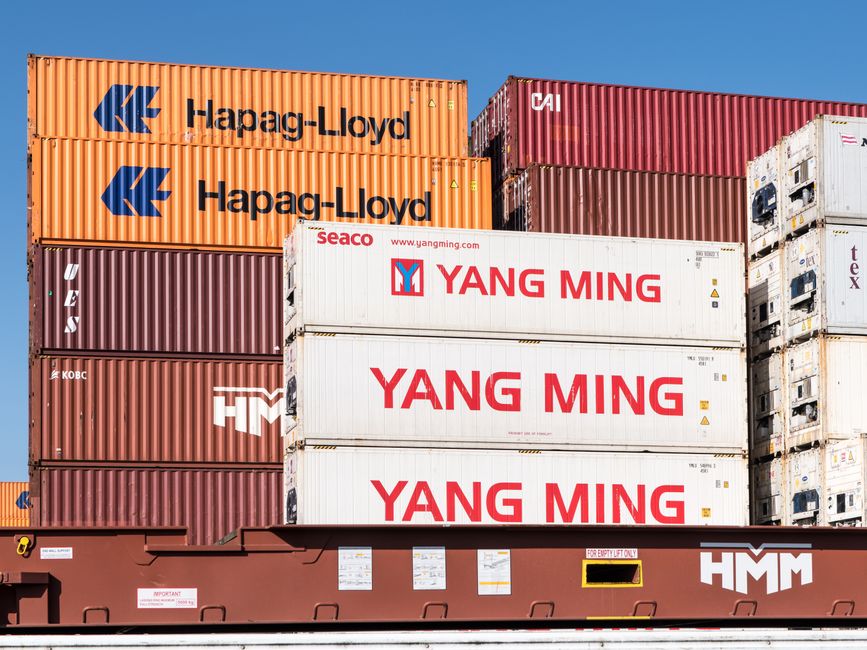
Think of it like shipping containers, the steel boxes stacked on cargo ships. Before them, dockworkers loaded goods piece by piece, and every port handled things differently. The standardized container changed the world because it didn't matter what was inside — every crane, truck, and ship knew how to handle the box. Software Docker does the same thing: it wraps your application and everything it depends on into one standardized unit that runs the same way on any machine that can run Docker. Your laptop, a teammate's, a server in a data center — same box, same behavior.
Images and Containers: The Two Words You Actually Need
Almost all of Docker comes down to two concepts, and people mix them up constantly, so it's worth nailing down.
An image is a blueprint. It's a read-only snapshot that says "here's a Linux base, here's Python 3.12, here's my app code, here are the libraries it needs, and here's the command to start it." An image is a file sitting on disk. Nothing is running yet.
A container is what you get when you actually start an image. It's a live, running instance — the blueprint brought to life. The relationship is exactly like a class and an object in programming, or a recipe and the meal you cook from it. One image can spin up many identical containers, which is why the model scales so well: build once, run the same thing a hundred times.
Here's the whole loop in three commands:
# Download an image from Docker Hub (a public library of images)
docker pull nginx

# Start a container from that image
docker run -d -p 8080:80 nginx

# See what's currently running
docker ps
That docker run line starts the nginx web server and maps port 8080 on your machine to port 80 inside the container. Open http://localhost:8080 in a browser and you're looking at a real web server you didn't install, configure, or clean up afterward. When you're done, docker stop and it vanishes without leaving anything behind on your system.
Writing Your First Dockerfile
Pulling ready-made images is useful, but the real payoff is packaging your own app. You do that with a Dockerfile — a plain text file, no extension, that lists the steps to build your image. It reads almost like a to-do list.
Say you have a small Python web app. Your Dockerfile might look like this:
# Start from an official Python image
FROM python:3.12-slim

# Set the working folder inside the container
WORKDIR /app

# Copy the requirements file and install dependencies
COPY requirements.txt .
RUN pip install -r requirements.txt

# Copy the rest of your code
COPY . .

# The command that runs when the container starts
CMD ["python", "app.py"]
Each line is a step Docker executes in order. Then you build the image and run it:
docker build -t my-app .
docker run -p 5000:5000 my-app
The -t my-app gives your image a name so you can reuse it. Notice the ordering trick in the Dockerfile: dependencies get installed before the app code is copied. Docker caches each step, so as long as requirements.txt doesn't change, it skips reinstalling everything on your next build even if you edited your code a hundred times. Small ordering decisions like this are the difference between builds that take seconds and builds that take minutes.
Where Docker Genuinely Earns Its Keep
It's fair to ask whether this is worth the learning curve for a solo project. Sometimes it isn't. But there are a few situations where Docker stops being a buzzword and starts saving you real hours.
Onboarding and collaboration. A new teammate clones your project, runs one command, and has the exact same setup as everyone else — no day-long ritual of installing the right database version and chasing cryptic errors. The environment is defined in code, so it's identical for everyone.
Running services you don't want to install. Need a PostgreSQL database for an afternoon of testing? Instead of installing it, configuring it, and later trying to fully remove it, you run one container and delete it when you're done. Your actual computer stays clean.
docker run --name test-db -e POSTGRES_PASSWORD=example -d postgresMatching production. The container you test on your laptop is byte-for-byte the same as the one running on the server. That "works on my machine" gap essentially disappears, because your machine and the server are now running the same machine in a box.
As your setup grows to multiple containers — an app, a database, a cache — you'll eventually meet Docker Compose, a companion tool that describes all of them in a single docker-compose.yml file and starts the whole stack with docker compose up. That's the natural next step once one container feels comfortable, but it's not something to worry about on day one.
A Few Honest Caveats
Docker isn't magic, and pretending otherwise sets you up for frustration. Images can get large, and a careless Dockerfile can produce a bloated multi-gigabyte image when a lean one would be a few hundred megabytes — using the -slim base images and cleaning up in the same step you install things helps a lot. There's also a real learning curve around volumes (how you keep data alive after a container is deleted) and networking (how containers talk to each other), and those are the topics most likely to trip you up early.
There's a mental-model shift, too. Containers are meant to be disposable. You don't log into a running container and tinker with it like a pet server; if something needs changing, you change the Dockerfile and rebuild. Treating containers as cattle rather than pets feels strange at first but is exactly what makes them so reliable.
None of this should scare you off. You can get real value from Docker knowing only pull, run, ps, stop, and how to write a basic Dockerfile. The advanced pieces reveal themselves exactly when you need them, not before.
The One-Sentence Version, Finally
Docker packages your application together with everything it needs to run, so it behaves identically on any machine — ending the "works on my machine" problem for good. The blueprint is the image, the running copy is the container, and the recipe is the Dockerfile. That's genuinely most of it.
If you've been quietly nodding along in conversations without really following, pick a tiny project this week and try to containerize it. Write ten lines of Dockerfile, run two commands, and watch your app come up in a clean box. The moment it works, the buzzword turns into a tool — and it stops being something other people understand and you don't.


Comments 0